Descrição
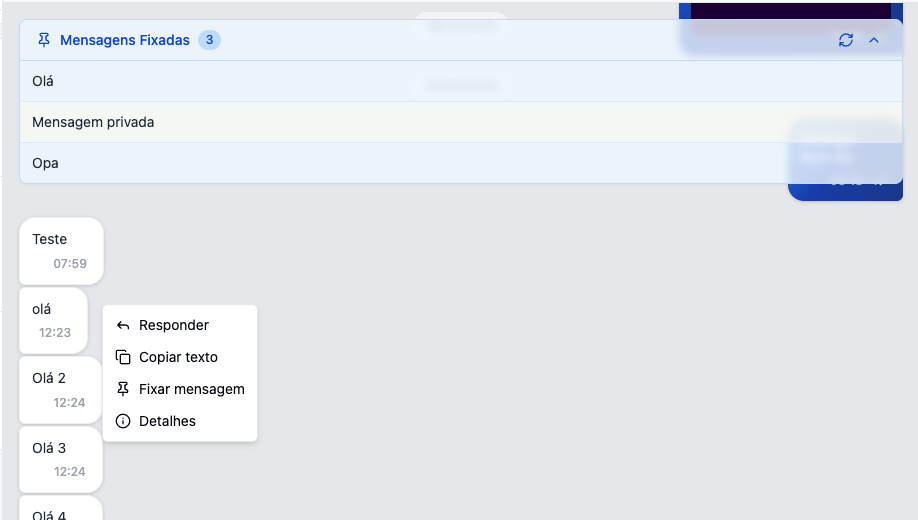
The chat flow will gain the ability to insert and pin private messages, plus the option to pin messages in regular conversations. This will let important information stay highlighted at the top, making it quick to reach both internal (private) messages and traditional exchanges with customers. The user can pin any relevant message while in the chat, whether private or regular. The goal is to improve organization and give more visibility to what is essential in service and in recording information. As a result, end users can look up important data faster during a conversation and avoid losing critical information in long threads.
How to use
Quick guide: pinned messages
What are pinned messages?
Pinned messages let you highlight important information at the top of the chat, making essential content easy to reach during a conversation.
How to use them
Pin a message
- Hover over the message you want to pin
- Click the three-dot icon (⋮) on the corner of the message
- Select "Pin message" in the menu
- The message appears at the top of the chat, in the pinned messages section
Note: You can pin both regular messages and private messages
View pinned messages
Pinned messages appear in a highlighted section at the top of the chat, just above regular messages.
Characteristics:
- Pin icon in the header
- Counter showing how many messages are pinned
- Content preview (first line)
- Yellow background for pinned private messages
Interact with pinned messages
When you click a pinned message:
- A preview modal opens showing:
- Full message content (with Markdown support)
- Date the original message was sent
- Who pinned the message and when
- Available buttons:
- "Go to message": Scrolls automatically to the original location of the message in the chat
- If the message is not loaded, the system searches the history automatically
- A progress bar shows page loading
- "Close": Closes the modal
Unpin a message
Option 1: From the pinned messages list
- Hover over the pinned message in the list at the top
- Click the X that appears on the right
- Confirm the action in the confirmation modal
Option 2: From the message menu
- Hover over the message in the chat
- Click the three-dot icon (⋮)
- Select "Unpin message"
- Confirm the action in the confirmation modal
Special features
Refresh the list
- Click the refresh icon in the pinned messages header
- Useful for syncing when several users are pinning or unpinning messages
↕ Collapse/expand
- Click the arrow icon (/) to collapse or expand the section
- Useful for saving screen space when you are not using it
Markdown support
- Every pinned message supports Markdown formatting
- Bold, italic, lists, links, and so on render correctly
Smart search
- When you click "Go to message", the system:
- Searches for the message in the history (even if it is not loaded)
- Loads the required pages automatically
- Highlights the message when it is found
Permissions
- Any team member can pin messages
- Any member can unpin messages (their own or someone else's)
- Private messages can be pinned
- Pinned messages are visible only to the organization
Usage tips
- Contact details: Pin important phone numbers, emails, or addresses for the customer
- Special instructions: Highlight requirements or notes specific to the conversation
- Reminders: Pin deadlines, appointments, or follow-ups
- Important context: Keep essential information always visible
- Decisions made: Pin agreements or important decisions during the conversation
Frequently asked questions
Q: How many messages can I pin? A: There is no set limit, but we recommend keeping only the most important ones so the view stays easy to scan.
Q: Are pinned messages visible to the customer? A: No. Only team members see pinned messages.
Q: What if I unpin a message by mistake? A: You can pin it again at any time from the message menu.
Q: Can I pin old messages? A: Yes! You can pin any message in the chat history.
Q: Do pinned messages sync in real time? A: Yes! When someone pins or unpins a message, every member sees the update instantly.
Icon reference
| Icon | Meaning |
|---|---|
| Pin | Pinned message |
| Refresh | Refresh the list |
| Arrow | Collapse/expand |
| Three dots | Actions menu |
| X | Unpin message |
| Go | Go to message |
| Click | View (already built into the click) |
Last update: October 31, 2025 Version: 1.0
Progresso
100%Interflow · 31 de outubro de 2025