Descrição
Add an option in the calendar import flow so the user can choose a custom date range before confirming import. This avoids bringing unnecessary events and makes it easier to sync only the desired period, saving time and reducing calendar noise.
In the import modal the user can upload the calendar file, select start and end dates (with presets such as last 7/30 days), and see a summary of events to be imported. On confirm, the system validates the file and creates only events within the chosen range, showing errors or conflicts clearly when needed.
Expected result: faster, more accurate imports, a cleaner calendar, less manual cleanup after import, and better control over scheduling for the team.
How to use
Guide: Import events from Google Calendar
How to import events
1. Export from Google Calendar
- Go to Google Calendar
- Click Settings
- In the side menu, click Import & export
- Click Export (automatic download of a
.zipfile) - Unzip the file
- Find the
.icsfile for your calendar (e.g.name@gmail.com.ics)
2. Import into the system
-
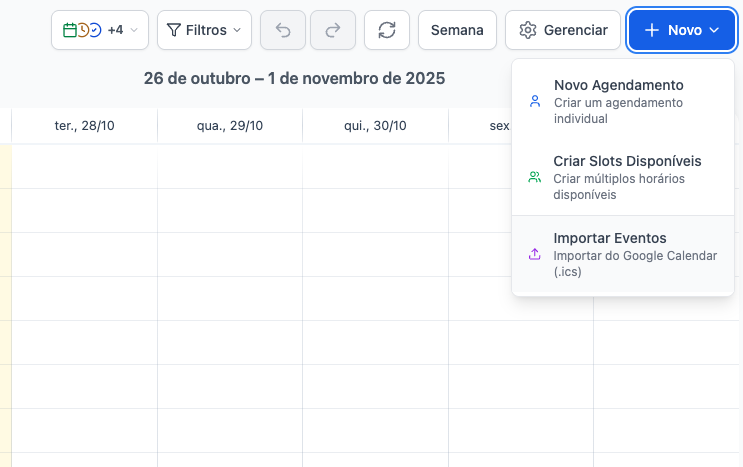
On the Appointments screen, click New → Import events
-
Select the file
- Click Choose file and select the exported
.ics
- Click Choose file and select the exported
-
Configure filters (optional)
- Check Use date filter to import only a specific period
- Select start and end dates
- Example: import only October 2025 events
-
Select calendar and professional (required)
- Choose which Calendar receives the events
- Choose the responsible Professional
-
Click Process file
3. Map events
You will see all events found. For each event:
- Select which events to import
- Service: choose the matching service type
- Status: choose appointment status
Scheduled(default)ConfirmedCompletedCancelledNo-showAvailable
- Customer: link a customer (optional)
Tip: You can set a default customer at the top to apply to all events at once.
4. Import
- Review selected events
- Click Import events
- Wait for import confirmation
Important notes
What is imported
- Event title
- Date and time (adjusted to your timezone)
- Description
- Location
What is NOT imported
- Cancelled events (STATUS:CANCELLED)
- Attachments and attendees
- Reminders
Limitations
- Recurring events are imported individually (each occurrence)
- Only events within the date filter are imported
- Calendar and professional must be selected
Usage tips
To import only recent events
- Use the date filter to limit the period
- Example: select only the current month
To import everything at once
- Do not check "Use date filter"
- All events in the file will be imported
If too many events appear
- Uncheck events you do not want
- Use the date filter to reduce the count
If import errors occur
- Check that calendar and professional were selected
- Check that a service was chosen for each event
- Try importing smaller batches using the date filter
FAQ
Q: Can I import from Outlook or Apple Calendar?
A: Yes. Export the calendar as an .ics file and import normally.
Q: Will duplicate events be created if I import again? A: Yes, each import creates new records. Avoid importing the same file multiple times.
Q: The time is wrong after import A: The system converts automatically to your local timezone. If Google Calendar used a different timezone, the time will be adjusted.
Q: Do cancelled events appear in import? A: No. Events with status CANCELLED are filtered out automatically.
Support
If you have questions or problems, contact technical support.
Version: 1.0 | Date: October 2025
Progresso
100%Clínica Moshé Bergel · 28 de outubro de 2025